Learn about Monarch Student features and tools
Your Home > Schoolwork page is the page you see every time you log in to Monarch Student.

Let's take a look at the top part of the page first.
What the main nav bar buttons do
At the top right of your Schoolwork page is the main navigation bar (main nav bar)(see item A).

This main nav bar contains several tools (buttons) that open the functions you use most often. The main nav bar is always visible no matter what page you are viewing.
|
Home

|
Click Home to return to your Schoolwork page and also to access your Calendar.
|
|
Learn

|
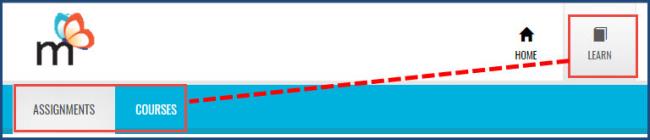
Click Learn to go to your assignments and also to access your Courses information, including completed work.
|
|
Message

|
Click Message to go to your Inbox of the Monarch internal messaging system to read messages from and send messages to your teacher.
|
|
Help

|
Click Help to open the page where you have buttons to launch the online Student Help and access a copy of this Monarch Student Guide .
|
|
[Your name]

|
The button with your name and small arrow (see item B above) has additional commands that let you:
|
What the function toolbar tabs do
Below the main nav bar is a function toolbar (item C below). The tools (tabs) on this function toolbar change when you select a top-level button on the main nav bar (item A above).

For example, when you click the Home button, you see the Schoolwork and Calendar tabs on the function toolbar as shown in example C above. When you click the Learn button, the Assignments and Courses tabs are visible as shown in the example below.
What you see in the sections of your Schoolwork page
The lower part of your Schoolwork page is divided into several sections so that you can easily see and open your current assignments, read any messages sent by your teacher, .and open helpful resources. You may also see status for your Monarch subscriptions.
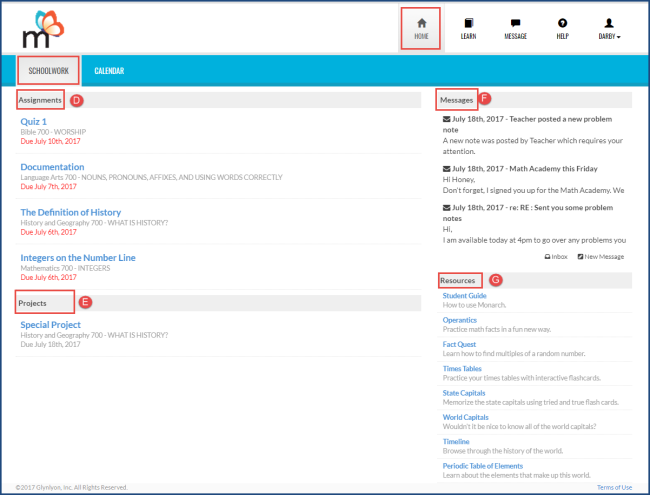
The sections of the Schoolwork page identified above include:
|
D
|
Assignments list
|
Displays the next assignment you have in each Monarch subject assigned to you and the date it is due.
|
|
E
|
Projects list
|
Displays all projects that are accessible to work on. If you do not have any accessible projects, this section does not display.
|
|
F
|
Messages list
|
Displays all unread messages received from your teacher, a link to your Inbox, and a button to create a new message for your teacher.
|
|
G
|
Resources list
|
Contains a Student Guide link to the page with buttons to launch the online Student Help file and the Student User Guide.
Also contains links to various Resources, such as a historical timeline, flash cards, math and vocabulary drill activities that your teacher has assigned to you. Click a link to open the resource.
|
Note: Your Schoolwork page may display another section called Subscriptions Status. This section only appears when you have subscriptions that are set to expire or have already expired in the last 30 days. This is important information for you to know because no work can be done on expired courses. Let your teacher know about subscriptions that are set to expire soon.
What's next?
Now that you have learned about some of Monarch Student features and tools, what do you want to do next?
 ©
©