 button. See Share information about assignments with your Teacher using problem notes.
There are a couple of different kinds of project assignments, including essays and reports. Because project assignments allow one attempt, be sure you are ready to submit your work and mark the lesson as complete. Projects are graded by your teacher.
There are several ways to open a project that is accessible to work on:
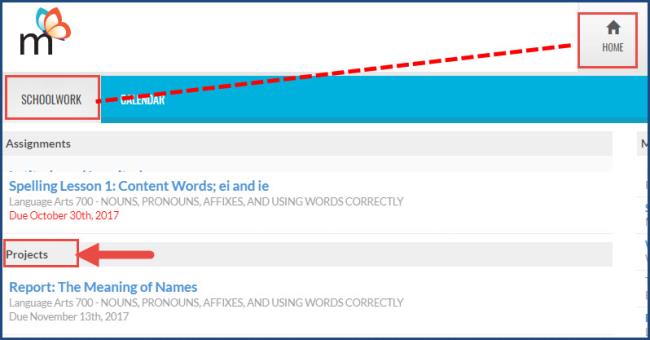
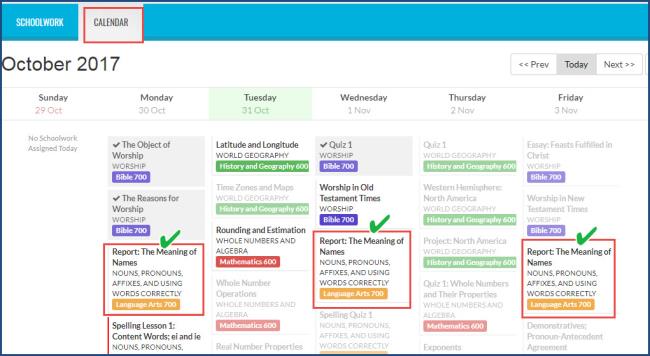
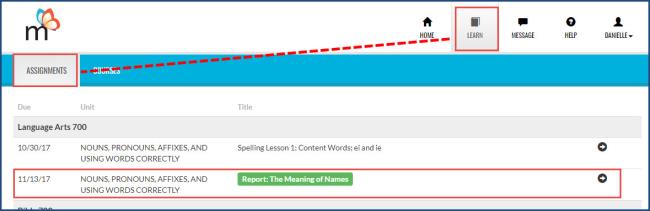
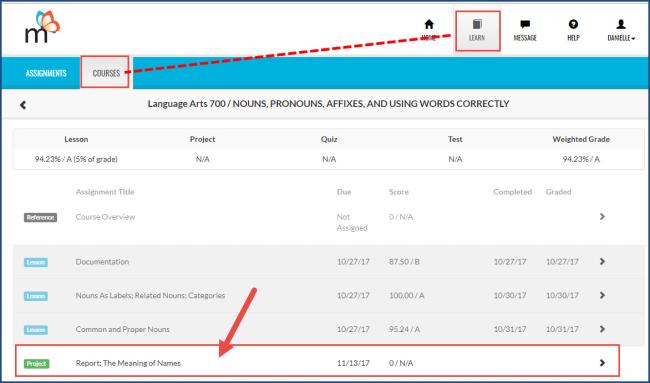
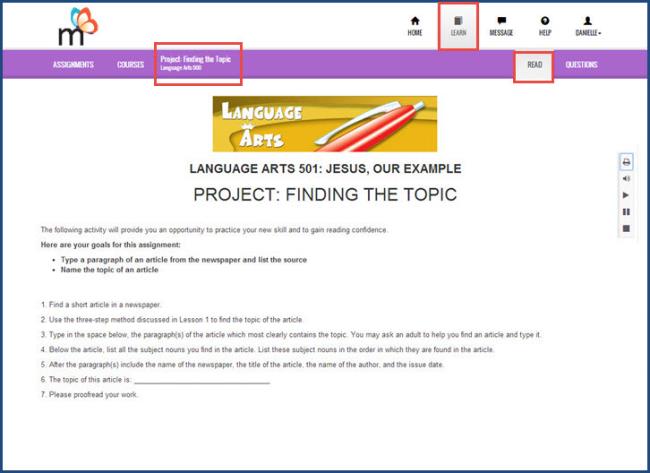
When you open a project, you see a project page. Typically, there are instructions on the page that tell you what is expected for the project.
Once you click the Questions button, your page may look like the example shown here.
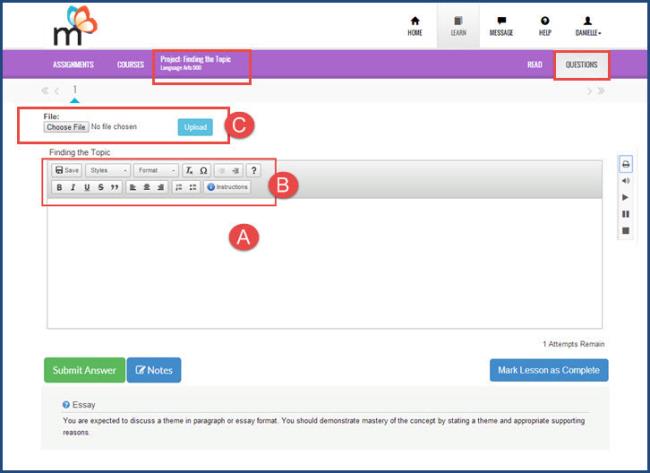
Note: If you see a link to an existing file when you click the Questions button the first time, either your teacher or Monarch has already created a place for you to start your project.
button. See Share information about assignments with your Teacher using problem notes.|
Option |
Do this... |
|---|---|
|
I am finished and ready to have the project graded by my teacher |
You have one attempt for a project and once you click the Submit Answer button, it becomes disabled and you cannot make any more changes.
The project now appears as Completed (ü) on the Calendar on the project start date and is sent to your teacher for grading. |
|
I want to save my work and come back later to finish the project |
The project is saved to Monarch, but not yet submitted for grading. When you are ready to have it graded, follow the steps in the first option. |
Projects have a formatting toolbar containing tools to assist you.
|
Button |
Description |
|---|---|

|
Save the work you have done. |

|
Select the style of text you want to use for selected text. |

|
Select the format style you want to use for the paragraph. |

|
Remove the formatting for the selected text. |

|
Indent text in the direction the arrows indicate (left or right). |

|
Set a quotation of text from someone else and |

|
Insert special characters. |

|
See an explanation about essays type questions. |

|
Make the selected text bold. |

|
Italicize the selected text. |

|
Underline selected text. |

|
Strikethrough (draw a line through) selected text. |

|
Align text, to the left margin, center, or right margin. |

|
Create a numbered or bulleted list. |

|
Open the project instructions in a separate window. |
Tip: If you uploaded the wrong file, click the Delete button to remove the file from Monarch. If you want to make changes before you send it to your teacher for grading, you can make the changes in the file on your computer and upload it again.
 ©2018 Monarch™ Alpha Omega® Publications, a division of Glynlyon, Inc. All rights reserved.
Contact information:
Technical Support 1-888-881-4958 Monday – Friday: 7 a.m. - 5 p.m. CT
Customer Service 1-800-622-3070 Monday – Friday: 7 a.m. - 5 p.m. CT
Website: www.aop.com/Support/Monarch
 button.
  button.