Communicate with your teacher using Monarch internal messaging
Monarch has an internal messaging system that lets you send messages to and receive messages from your Teacher. If you and your Teacher use problem notes to communicate about problems in assignments, problem notes messages also appear within the Monarch Message Center. The Messages area of your Schoolwork page lets you know you have unread messages.
Tip: If your Teacher uses the school Notifications setting for problem notes and emails from you, he/she is notified in a timely manner when you have entered a problem note or sent a message.
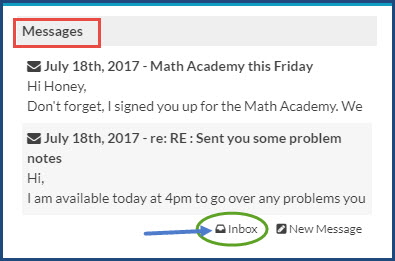
Read messages from your teacher
From your Inbox, you can see all of the new messages you have received. Unread messages appear in bold text in the list of messages.
- Click anywhere in the text to read a message or click the Inbox button or Message button (on the main nav bar) to see all of your read and unread messages. To read and respond to a problem note message from your Teacher, click the link to open the assignment's problem. For more information about how to write and respond to problem notes, see Share information about assignments with your Teacher using problem notes.
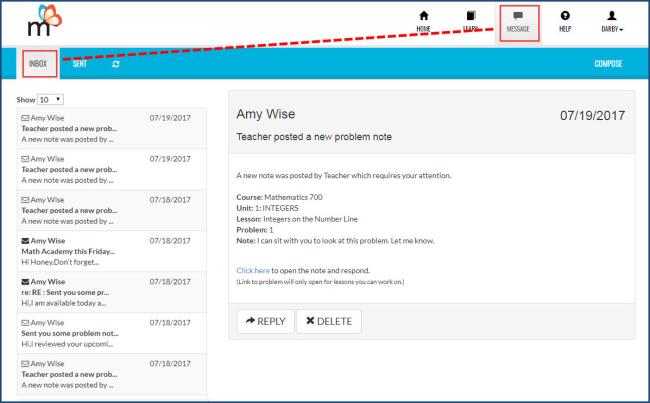
When you view a message, from either your Inbox or your Sent message box, you can see the following information:
- Who the message is from or who the message was sent to.
- The subject of the message.
- If it is a message about a problem note, you see the course, unit, lesson, and problem information along with the comment/response left by the parent. Also, if the problem is within an assignment the student has access to, then there's a link in the message that will take you directly to the conversation for that problem.
- When the message was sent.
After reading a message:
- To answer a message, click Reply, enter your response, and click Send.
- To delete read messages, you click the Delete button on the message. You can only delete one message at a time.
Send messages to your teacher
You can send a message to your teacher.
- Click the Compose button to open a new message.
- Enter a subject.
- In the text box, enter your message.
- Click Send.
View sent messages
Once you create a message and send it, the message is placed in the Sent message box list.
- To view sent messages, click the Sent button next to the Inbox button.
You can reply to sent messages and delete them just like with received messages.
Note: If you forward a problem notes message from one student to another student, that second student does not see the link to open the assignment.
 ©2018 Monarch™ Alpha Omega® Publications, a division of Glynlyon, Inc. All rights reserved.