Answer assignment questions (problems)

Questions (problems) help you check to see if you learned what is presented in a lesson. Each problem is a question about something covered in the reading part of the lesson. Each problem has a point value assigned to it or your teacher gives it a point value which makes up the grade (score) for the lesson. To learn more about problem scores, see How problems are scored.

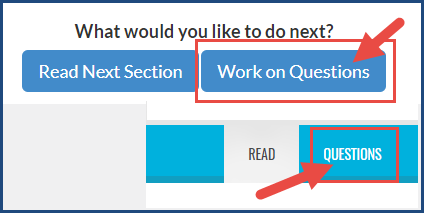
Tip: To help you answer the questions, you can easily go back and forth between the questions and lesson. Click the Read button on the function toolbar to find the answer and then click the Questions button to return to the question.

What you see in the Questions section of your lesson

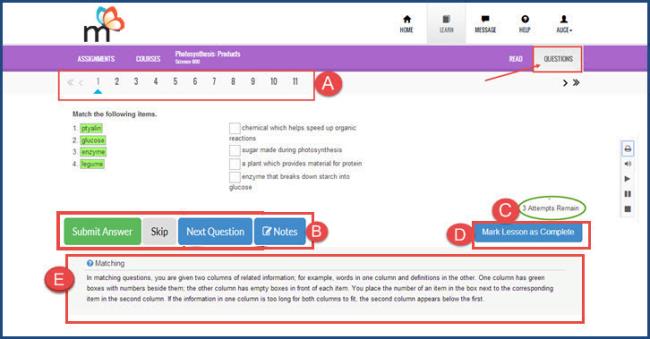
Let’s take a look at the question section of your lesson.

This table explains the items A - E identified in the Questions section above.

Item

Feature/tool

Description

A

Question bar

Row of numbers below the function toolbar. Each number is a question for you to answer. The number with the arrow pointing to it is the question you currently see. You can click any number to go to that question.

B

Question buttons

  • Submit Answer button lets you submit your answer and have Monarch provide an immediate score. See Submit answers and get answer feedback.
  • Skip button lets you skip the question if your Teacher has allowed skipping for assignments. If the button is inactive, you cannot skip questions. See Skip questions.
  • When you stay on a question, you see the Next Question button display beside the Skip button. Click this button to move to the next question.
  • Notes button lets you write a note to your teacher about a problem. If the Notes button looks like this with a red circle and number, it means your teacher has added a note to the problem for you to read. See Share information about assignments with your Teacher using problem notes.

C

Attempts counter

Tells you how many times you can try to correctly answer the problem. Once this counter reaches zero (0), the last answer you entered is the one that your teacher sees and that grade is your score for the problem. The number of attempts is set for you by your teacher.

D

Mark Lesson As Complete button

Click this button to submit the lesson for grading. You must answer at least one question before marking the lesson as complete. See Mark assignments as complete.

E

Problem description text

Tells you what type of problem it is and how to work the type of problem. In the example above, we see a “Matching” type problem and the explanation of how to complete a problem of that type. For more information, see Learn about Monarch problem types.

Submit answers and get answer feedback

  1. Based on the problem type, answer the question. If you are working on an essay or project problem, be sure to upload a file if one is required.
  2. To submit your answer, click the Submit Answer button.

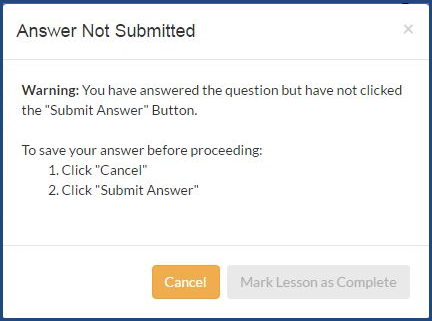
Note: If you click the Submit Answer button and have not answered the question, you are notified that the question must be answered to get a grade. However, if you answered the questions, but have not clicked the Submit Answer button, and try to mark the lesson as complete, the message below appears letting you know to click the button first.

  1. For answered questions, colored indicators appear to the right of each question number to let you know whether or not you answered the question correctly, incorrectly, partially correct, or skipped it. Depending on the type of problem, a message lets you know the number of attempts remaining.

What the colored indicators mean

The colored indicators next to the question number of an answered question give you feedback of how you answered the question.

Indicator

Means...

Black question number, no indicator

Question has not been answered. You need to answer the question and click Submit Answer for the question to get the point value grade.

ü Green check mark

Answer is correct. You get the full point value for the problem type.

X Red "x"

Answer is incorrect and you have no attempts remaining.

ü Orange check mark

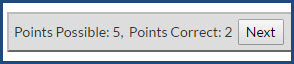
Answer is partially incorrect and you may have attempts left to change it. Depending on the type of problem, you may see an message telling you the number of points possible for the answer and the number you have correct. You can keep trying to get all points if you have attempts left to change it.

Gray arrow

Question has been allowed to be skipped by the teacher, or you, as the student, have skipped the question. A skipped question earns 0 points and may or may not count towards the lesson grade. Your teacher may assign a skipped question back to you to answer it again.

  1. Answer the questions in the order presented, or you can click any question number to read the question first, and then answer it after you have reviewed the lesson text again. Be sure to click the Submit Answer button for each answered question.

Tip: If you need some assistance on a problem or just want to explain an answer, write a note to your teacher. See Share information about assignments with your Teacher using problem notes.

  1. If you have attempts remaining, for partially correct questions, you can attempt the answer again until you have no attempts left.
  2. When you are done answering questions, now you need to mark the lesson as complete so that your Teacher is aware of any questions that need grading and Monarch can update the assignment with a completed date. See Mark assignments as complete.