 button.
 Once you have answered all of the questions for the assignment and are ready to have your assignment graded, you need to mark it as complete so that Monarch can change the assignment's status, notify your teacher if problems require teacher grading, and compute the current grade.
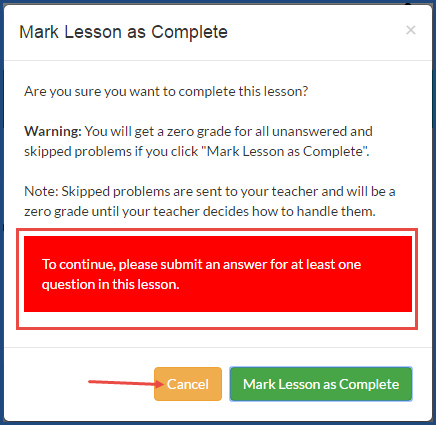
Warning: Do NOT click the Mark Lesson as Complete button if you have not submitted answers for all of the problems because any problems you did not answer or skipped get a score of zero (0). Skipped problems are handled by your teacher who decides whether or not to keep the problem skipped or re-assigns it to you. If you try to mark the lesson as complete and have not submitted an answer for at least one question, you cannot proceed in the lesson.
To mark an assignment as complete:
Tip: If you want to leave the assignment before you are finished, click the Assignments, Courses, or Learn button. Remember, you can usually only open a quiz or test once unless your Teacher has allowed you to enter and exit as many times as you want.
button. 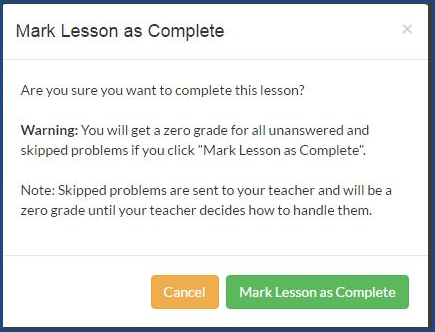
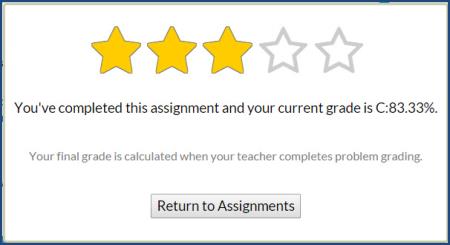
Note: If you did not submit an answer for at least one question, another message appears stating that you must answer at least one question. Click Cancel to return to the lesson.
 ©2018 Monarch™ Alpha Omega® Publications, a division of Glynlyon, Inc. All rights reserved.
Contact information:
Technical Support 1-888-881-4958 Monday – Friday: 7 a.m. - 5 p.m. CT
Customer Service 1-800-622-3070 Monday – Friday: 7 a.m. - 5 p.m. CT
Website: www.aop.com/Support/Monarch