 button.
 If you cannot find an answer in the lesson or don’t understand the question or answer, you may have the option of skipping the question. Be aware that once you skip a problem, you are not able to go back and submit an answer for that problem because the Submit Answer button is disabled for that problem.
Note: Skipped problems are sent to your teacher with a zero ( 0 ) grade until your teacher decides how to handle them. Your teacher can keep the problem skipped or he/she can reassign the problem to you.
You have to provide a reason for skipping the question. These steps assume you are working on the Questions in an assignment.
button. Tip: If you don't see the Skip button, this means your teacher is not allowing you to skip problems. Contact your teacher.
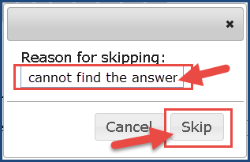
The problem number now shows a gray arrow next to the number which indicates the question has been skipped by you. A message also appears telling you that the problem has been skipped.

Notice that the Submit Answer button is disabled (dimmed) for the skipped problem.

Tip: You can click the Read button on the function toolbar at any time to return to the presentation part of the lesson.
 ©2018 Monarch™ Alpha Omega® Publications, a division of Glynlyon, Inc. All rights reserved.
Contact information:
Technical Support 1-888-881-4958 Monday – Friday: 7 a.m. - 5 p.m. CT
Customer Service 1-800-622-3070 Monday – Friday: 7 a.m. - 5 p.m. CT
Website: www.aop.com/Support/Monarch