 , when a new note is added by you to a problem.
 You can share information with your teacher using problem notes for an assignment. For example, you are having trouble understanding a problem in a math lesson. You can add a note to the problem asking your teacher for help. To alert your teacher that you added a problem note, if your teacher is using the Problem Note / Message Center E-mails school notification, he/she gets an immediate email notification. Also, a message appears in their Monarch Message Center Teacher Inbox as a visual alert that you need assistance. A link in the email notification as well as in the message lets your teacher easily get to the note and respond. See Write problem notes to your teacher.
Tip: Your teacher sees a red indicator with a count on the Notes button, like this , when a new note is added by you to a problem.
Your teacher can write notes to you about an assignment problem. Maybe your teacher has reviewed an upcoming lesson and has some guidance for you about a problem. To alert you that your teacher has added a problem note, a message appears in your Monarch Student Inbox. A link in the message lets you easily open the note and respond to it. See Read and respond to problem notes from your teacher.
Tip: You also see a red indicator with a number on the Notes button, like this  , when a new note has been added by your teacher to a problem.
Note: You can add problem notes to all your active, open courses. Once a course becomes closed (this means, all the assignments are graded), existing problem notes can be viewed, but you cannot add notes to a problem in a closed course.
Note: Your teacher can delete a problem note in Monarch Teacher and this means you will not see the note in Monarch Student.
You can add one or more notes to problems in lessons, projects, quizzes, and tests.
 button.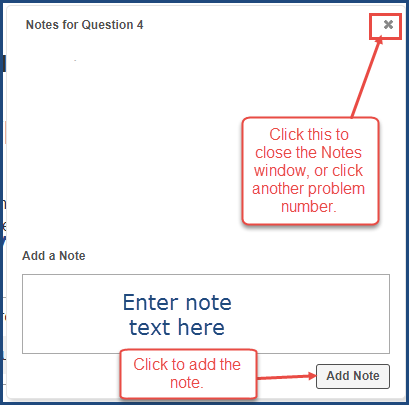
Your teacher gets an immediate email notification (if your teacher is using the Problem Note / Message Center E-mails school notification) and/or a message in their Monarch Message Center Inbox alerting him/her about the note. If your teacher sends a response, you get a message in your Inbox. See Read and respond to problem notes from your teacher.
You can read and respond to problem notes sent to you by your teacher. You can open the problem note in your Message Center or when you open the assignment and go to the problem, the Notes button looks like this  with a red indicator and the note count. When you read the note, the count changes or disappears entirely.
Note: You cannot view problem notes for blocked, unassigned, or future (not scheduled to be worked) assignments. You will get the message about the note, but you cannot open the assignment with the note until your teacher takes action to make the assignment available to you or the assignment is ready for work.
Note: When you try to open a problem note for a quiz or test, if the quiz or test is your next assignment, you are asked if you want to start the quiz or test. However, if the quiz or test has already been completed by you, you cannot open the note.
The message displays in your Inbox.
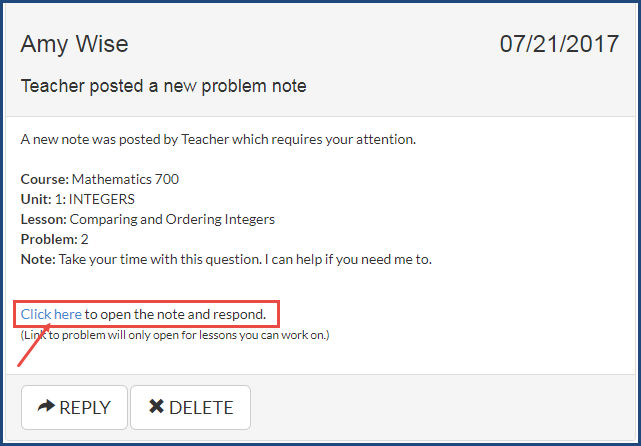

Or
If you do not want to reply or you just want to close the note window, click the Close X.
 ©2018 Monarch™ Alpha Omega® Publications, a division of Glynlyon, Inc. All rights reserved.
Contact information:
Technical Support 1-888-881-4958 Monday – Friday: 7 a.m. - 5 p.m. CT
Customer Service 1-800-622-3070 Monday – Friday: 7 a.m. - 5 p.m. CT
Website: www.aop.com/Support/Monarch