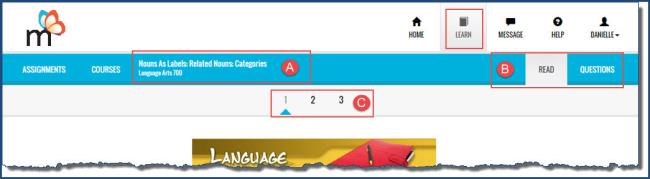
The top of the lesson page has the main nav bar and the function toolbar. The function toolbar has a few new tools on it when you are in an assignment.
|
Item |
Tool/feature |
|---|---|
|
A |
Title of the assignment and subject. |
|
B |
Read and Questions buttons. When the assignment opens you are on the Read page. This is where you find the body of your lesson - the text, your goals for the lesson, any media, vocabulary list, etc. Sometimes lessons are broken into sections. |
|
C |
Section number indicators. Indicate the assignments has multiple sections. Click the number to go to the next section or you can click the Read Next Section button on the bottom of the page. You don’t want to miss a section!. |
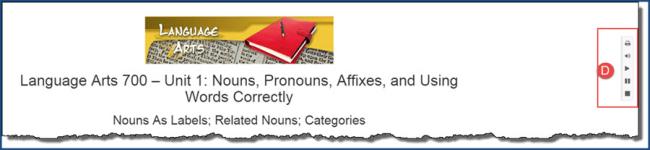
On the right side of the lesson are several tools (item D below). These tools allow you to:
The body of the page (item E below) is the presentation part of the lesson. This is the part you need to read. It may have videos and slide shows to watch, pictures to see and vocabulary and spelling words to practice. Most lessons have one or more vocabulary words used in the lesson. You should become familiar with all of these words. Each of the vocabulary words is recorded.
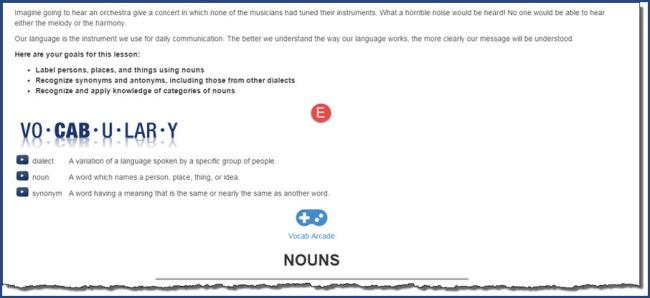
There may also be links to take you to more on the lesson topic. You may even come across a fun activity to practice what you are learning! In some of your lessons you may see a date in blue. This opens a timeline. Click it to see what events were taking place around that same time.
Below your Vocabulary words, you may see a Vocab Arcade  icon.
icon.
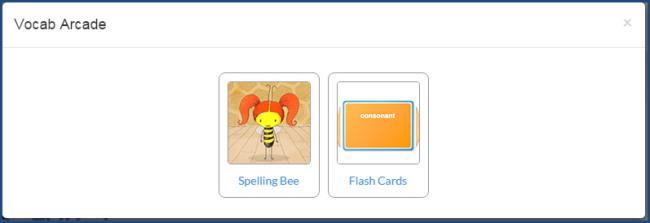
While playing the game, your lesson becomes inactive so that you can practice spelling of the vocabulary words or learning their definitions. When you finish the game and close it, your lesson is active again. To learn more about the vocabulary games, see Practice and learn using the Resources' tools and activities.
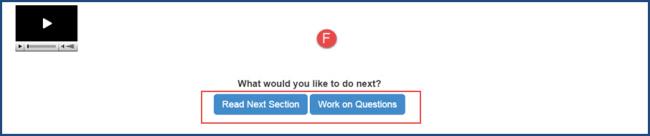
Make sure you read each section of the lesson carefully so you can answer the questions. Once you think you understand what you read you are ready to start working on the problems (questions). You can read a section and then work on the questions at the end of that section, or you can read all sections and then answer the questions. Example F below shows the Read Next Section and Work on Questions buttons.
Tip: You can also click the Questions button on the assignment toolbar to answer the questions.
When you've answered all the questions, you need to mark the lesson as complete so that Monarch knows it is done and you can get a grade for your work. If you just exit the lesson without marking it as complete, you won't get a grade for the lesson until it is marked as complete. See Mark assignments as complete.
 ©2018 Monarch™ Alpha Omega® Publications, a division of Glynlyon, Inc. All rights reserved.
Contact information:
Technical Support 1-888-881-4958 Monday – Friday: 7 a.m. - 5 p.m. CT
Customer Service 1-800-622-3070 Monday – Friday: 7 a.m. - 5 p.m. CT
Website: www.aop.com/Support/Monarch
 button to hear the